Skip to content
¿Prefiere español?Empleados PrimeroAbogados Laborales
¿Prefiere español? Empleados Primero Abogados Laborales
EMPLOYEES FIRST LABOR LAW
Our technology · The client portal

Your case, on your phone.

Built in-house by Employees First. Not off-the-shelf software.

The client portal at my.efll.law is part of the firm’s own case-management software. Once your legal team opens access for your case, sign in with a 6-digit code we text you, with no password to remember. Then see where your case stands, step by step, along with your upcoming dates and the documents your team shares with you. You can send your team files and messages, too. Every screen is in English and Spanish.

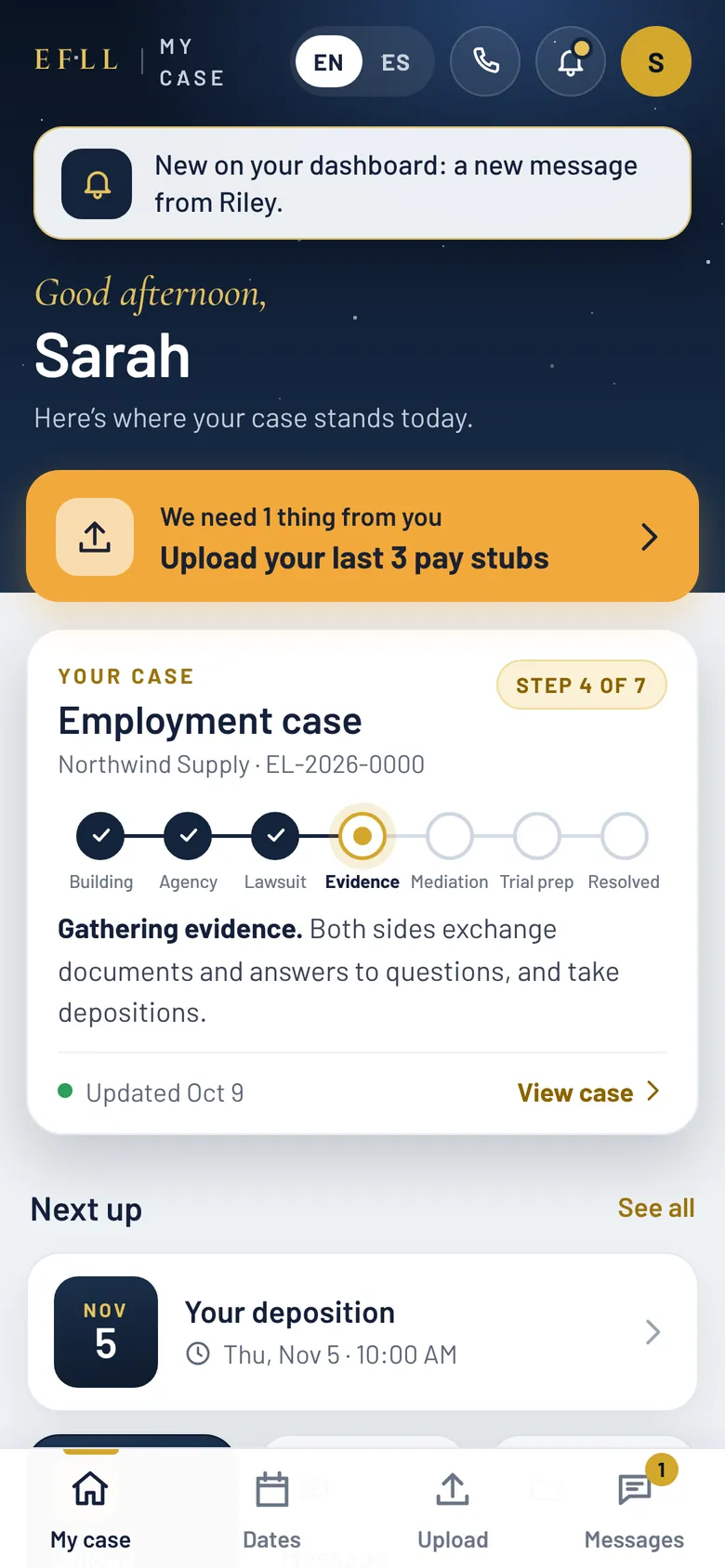
The portal's Home screen on a phone: a greeting with the client's first name, a banner reading “We need 1 thing from you,” a case card at Step 4 of 7, and the tab bar with My case, Dates, Upload and Messages.
Sample data — not an actual client or case.
  • Workers’ comp & employment clients
  • English & Español
  • No app to download
  • Serving workers since 2012
Part one · Getting in

How to get to your portal From the firm’s home page to your case, one step at a time.

  1. Go to efll.law
  2. Tap “Client Sign In”
  3. Arrive at my.efll.law
  4. Enter your mobile number
  5. Tap “Text me a code”
  6. Type the 6-digit code
  7. You’re in
Step 1

Go to efll.law and tap “Client Sign In”

Open efll.law in your phone’s web browser. At the top left you’ll see “← Client Sign In.” Tap it, and it takes you to my.efll.law, your client portal.

You can also type my.efll.law straight into your browser, or open the link in the invitation text the firm sends you when your access is opened.

The efll.law home page on a phone. The link “← Client Sign In” is at the top left, above the words Employees First Labor Law, P.C.
The firm’s home page, efll.law. Portal screens below use sample data — not an actual client or case.
Step 2

Enter the mobile number you gave the firm

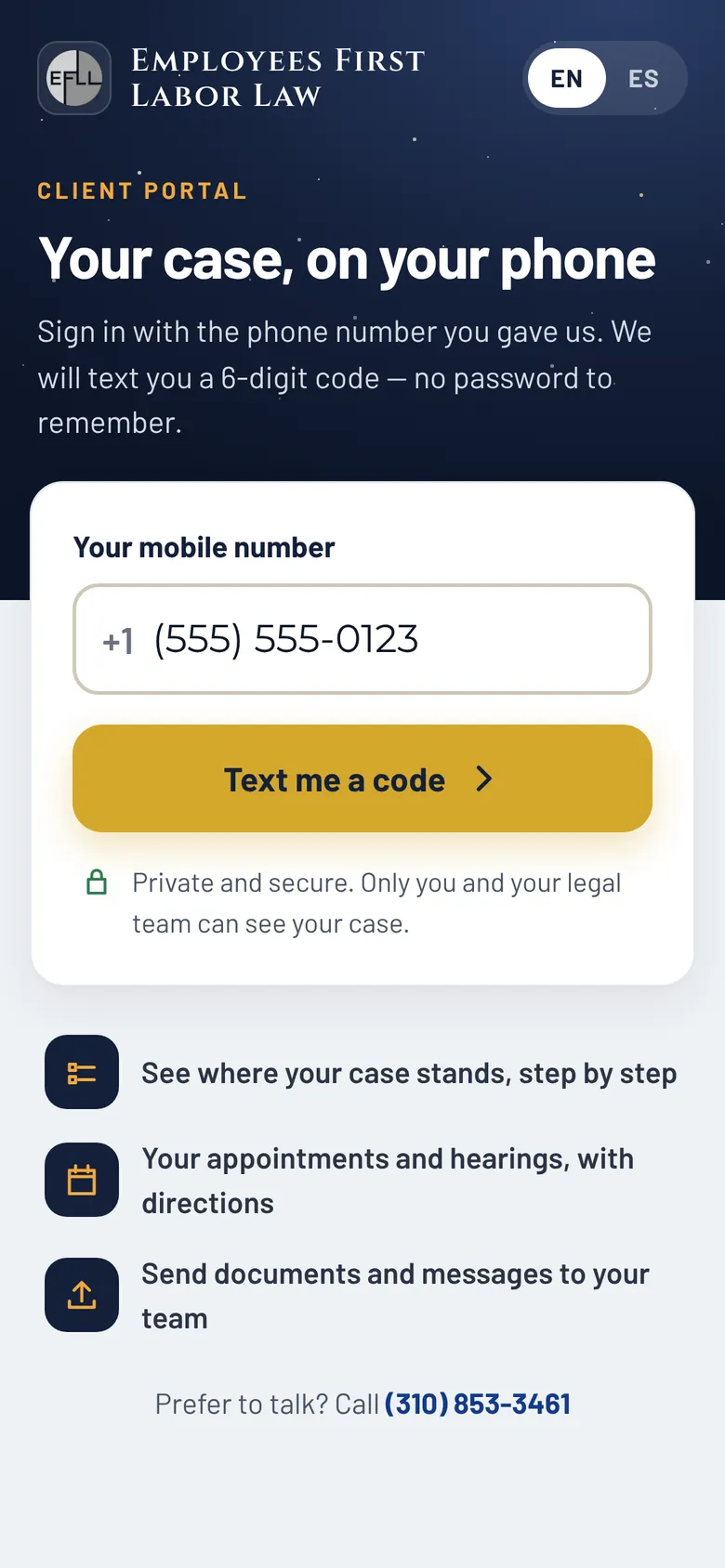
The sign-in screen says it plainly: “Sign in with the phone number you gave us. We will text you a 6-digit code — no password to remember.”

  • Type your number in the box marked “Your mobile number.” US numbers only; the +1 is already there.
  • Tap “Text me a code.”
  • Prefer Spanish? Tap EN / ES at the top right of any screen.
The my.efll.law sign-in screen titled “Your case, on your phone,” with a sample mobile number typed in and a gold “Text me a code” button.
Sample data — not an actual client or case.
Step 3

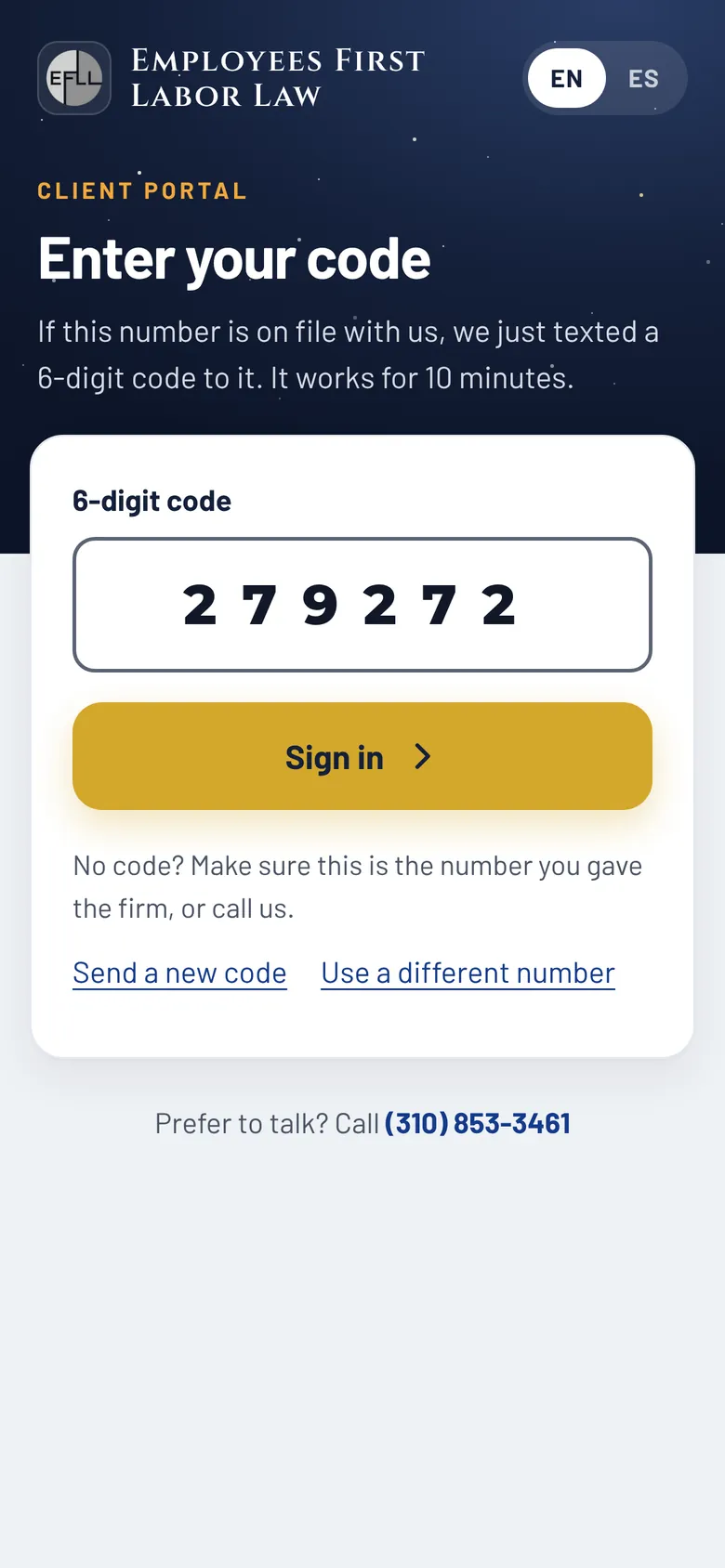
Type the 6-digit code we text you

If your number is on file, a text arrives with your code. It works for 10 minutes and only once. Many phones offer to fill it in for you straight from the text. Then tap “Sign in.”

The text looks like this (sample code):

Employees First Labor Law: your sign-in code is 123456. It expires in 10 minutes. We will never ask you for this code by phone.

  • Need another? Tap “Send a new code.” Only the newest code works.
  • Typed the wrong number? Tap “Use a different number.”
The “Enter your code” screen with a 6-digit code typed in, a gold “Sign in” button, and links to send a new code or use a different number.
Sample data — not an actual client or case.
Step 4

You’re in: your Home screen

You land on “My case,” greeted by your first name: “Here’s where your case stands today.” At a glance you’ll find:

  • A banner like “We need 1 thing from you” when your team has asked you for something.
  • Your case card: the type of case, your employer, your case number, and which step you’re on (for example, “Step 4 of 7”) on a 7-step tracker.
  • “Next up”: your next date.
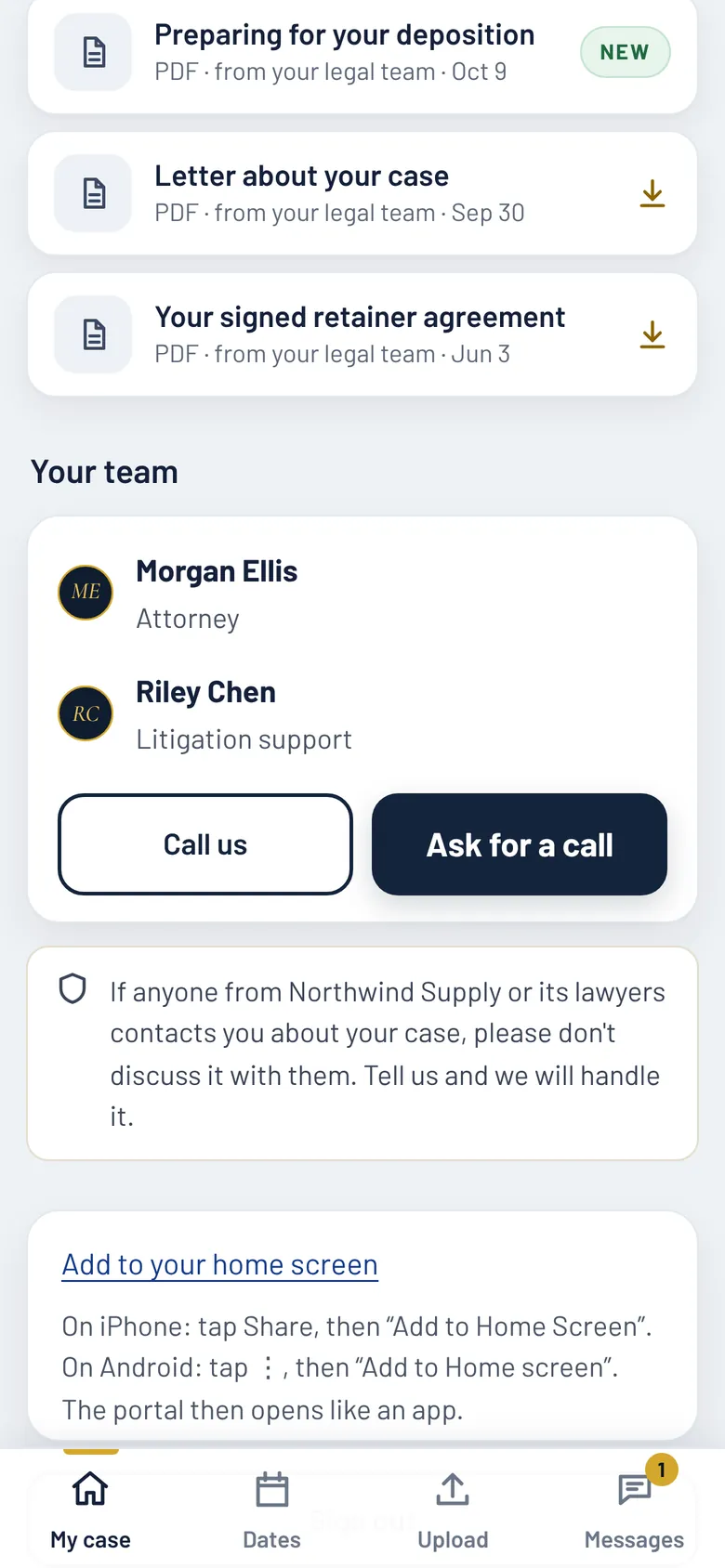
  • Your team’s names, with “Call us” and “Ask for a call” buttons.

You stay signed in for up to 7 days on that phone. To sign out sooner, tap your initial (the gold circle at the top right), then “Sign out.”

The Home screen: a greeting, a gold banner asking for the client's last 3 pay stubs, a case card at Step 4 of 7, Gathering evidence, and Next up: a deposition on November 5.
Sample data — not an actual client or case.
Optional

Add it to your home screen

There’s no app to download. The portal runs in your phone’s web browser. To open it with one tap, use the instructions on Home under “Add to your home screen”:

  • On iPhone: tap Share, then “Add to Home Screen.”
  • On Android: tap ⋮, then “Add to Home screen.”

The portal then opens like an app, with the name “Employees First.”

The bottom of the Home screen: Your team with Call us and Ask for a call buttons, a reminder not to discuss the case, and the opened “Add to your home screen” instructions.
Sample data — not an actual client or case.

Who can sign in

Workers’ comp and employment clients whose legal team has opened portal access for their case. Your team turns access on one case at a time, using the mobile number you gave the firm. Nobody can sign themselves up.

Have more than one case with us? One sign-in shows all of them.

No code arrived?

  1. Check that you typed the number the firm has for you.
  2. Wait a minute, then tap “Send a new code.”
  3. If you once replied STOP to the firm’s texts, codes can’t be sent to you.
  4. Call (310) 853-3461 and we’ll help.
Part two · Inside the portal

What you can do, screen by screen Four tabs along the bottom: My case, Dates, Upload, Messages.

The portal is up to date each time you open it. Your team decides what you see, and nothing shows up until they share it.

See where your case stands

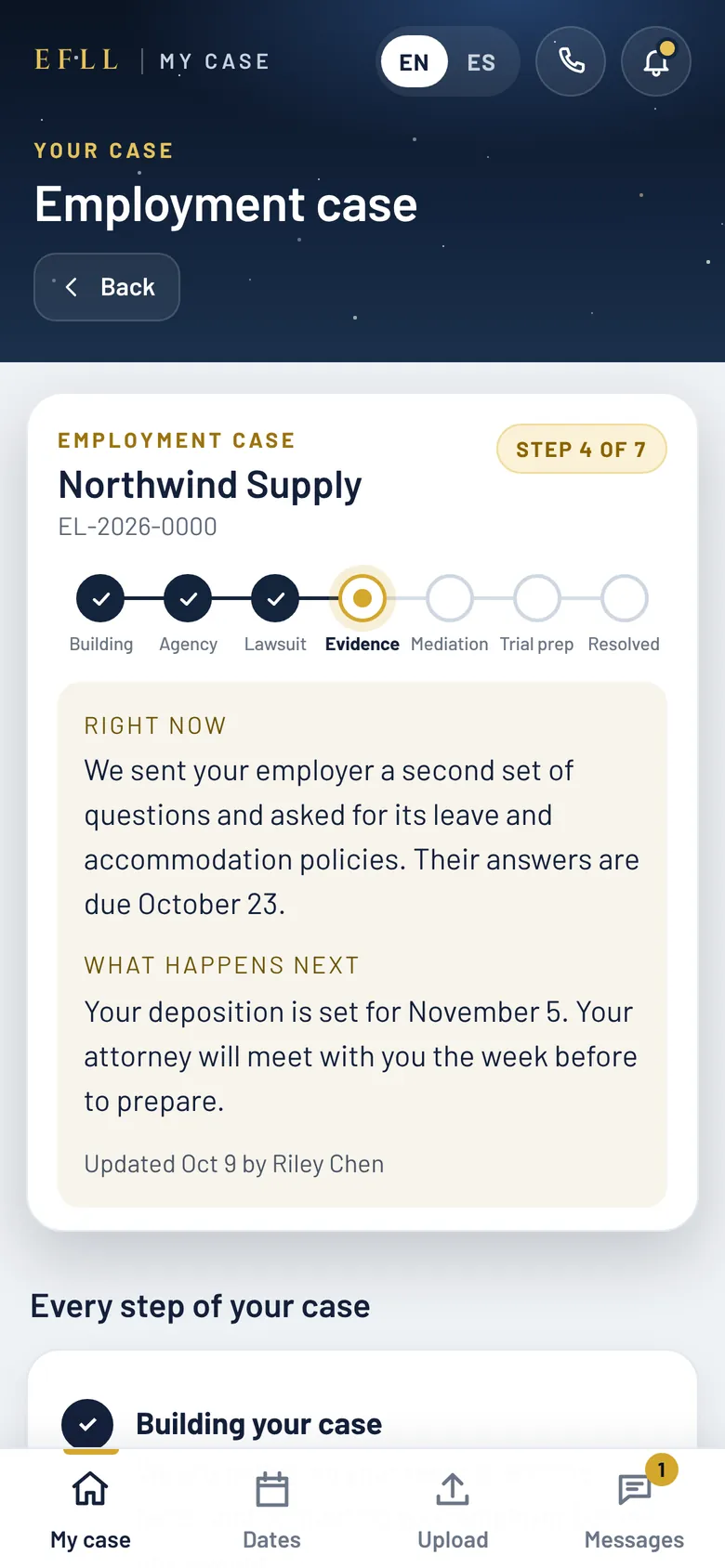
Tap “View case” for the full picture: your case type, employer, the firm’s case number, and your court case number when there is one.

  • “Right now” and “What happens next” are written by a person on your team, never by the software. Each shows who updated it, and when.
  • Updates describe what is happening. They never include dollar amounts, predictions or promises.
  • “Every step of your case” lists each step, with a check mark on the ones already passed.
The View case screen for an employment case: Step 4 of 7 on the tracker, then “Right now” and “What happens next” notes, updated by a named team member.
Sample data — not an actual client or case.

Your appointments & key dates

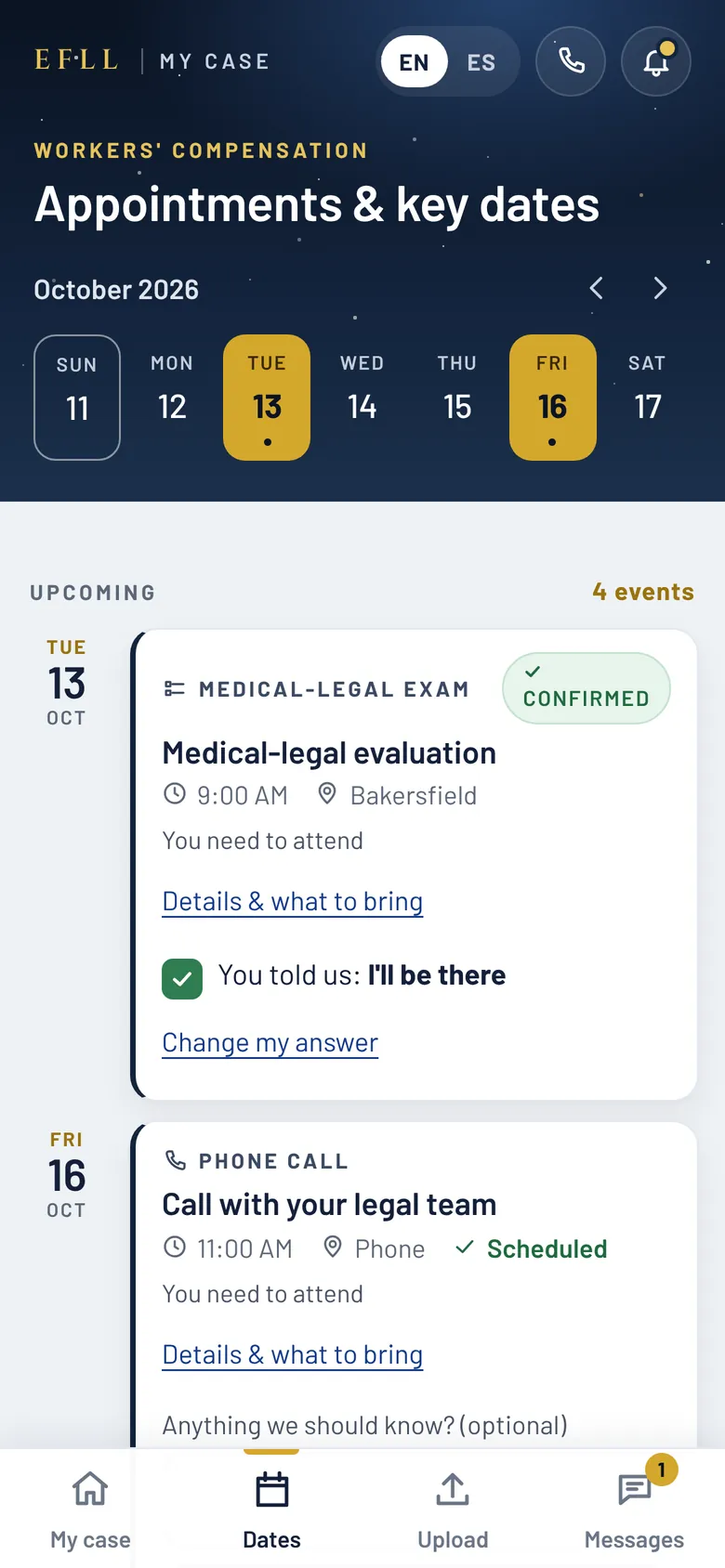
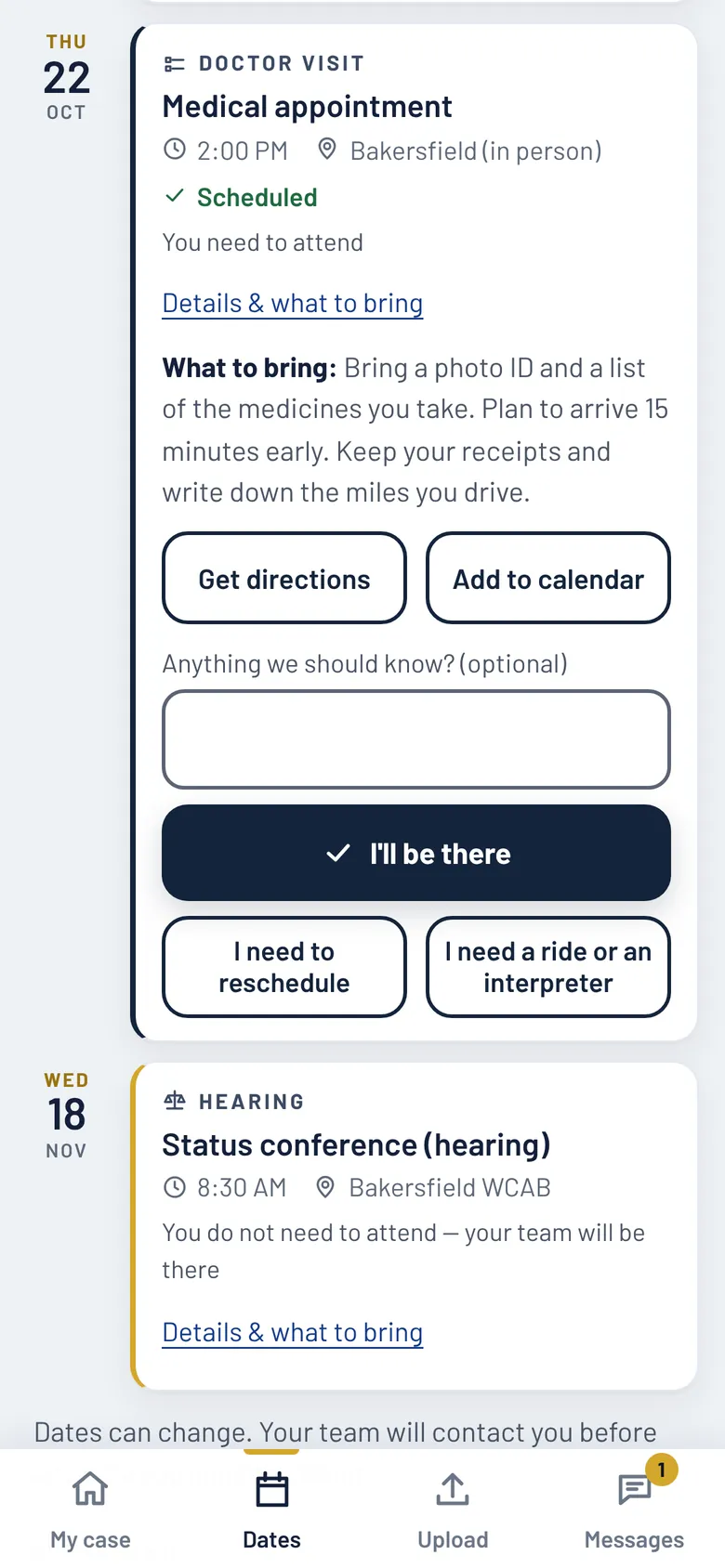
A week strip sits on top, with your “Upcoming” dates below. Each card shows the type, date, time and place, and tells you clearly:

  • You need to attend
  • You do not need to attend — your team will be there

Workers’ comp dates include hearings, medical-legal evaluations, medical appointments, your deposition and calls with your legal team. Employment dates include your deposition, mediation, arbitration hearings and trial.

The Appointments & key dates screen: a week strip for October, a confirmed medical-legal evaluation, and a scheduled phone call with the legal team.
Sample data — not an actual client or case.

Details, directions, and your answer

Tap “Details & what to bring” on any date:

  • What to bring: practical tips, like a photo ID, or when to arrive.
  • Get directions: opens Google Maps (not shown for phone, video or remote dates).
  • Add to calendar: downloads the date as a file your phone’s calendar can open.

On a date you need to attend, tell your team where you stand, with an optional note:

  • I’ll be there
  • I need to reschedule
  • I need a ride or an interpreter
An appointment opened to Details & what to bring: tips on what to bring, Get directions and Add to calendar buttons, and the answers I'll be there, I need to reschedule, and I need a ride or an interpreter.
Sample data — not an actual client or case.

Documents your team shares with you

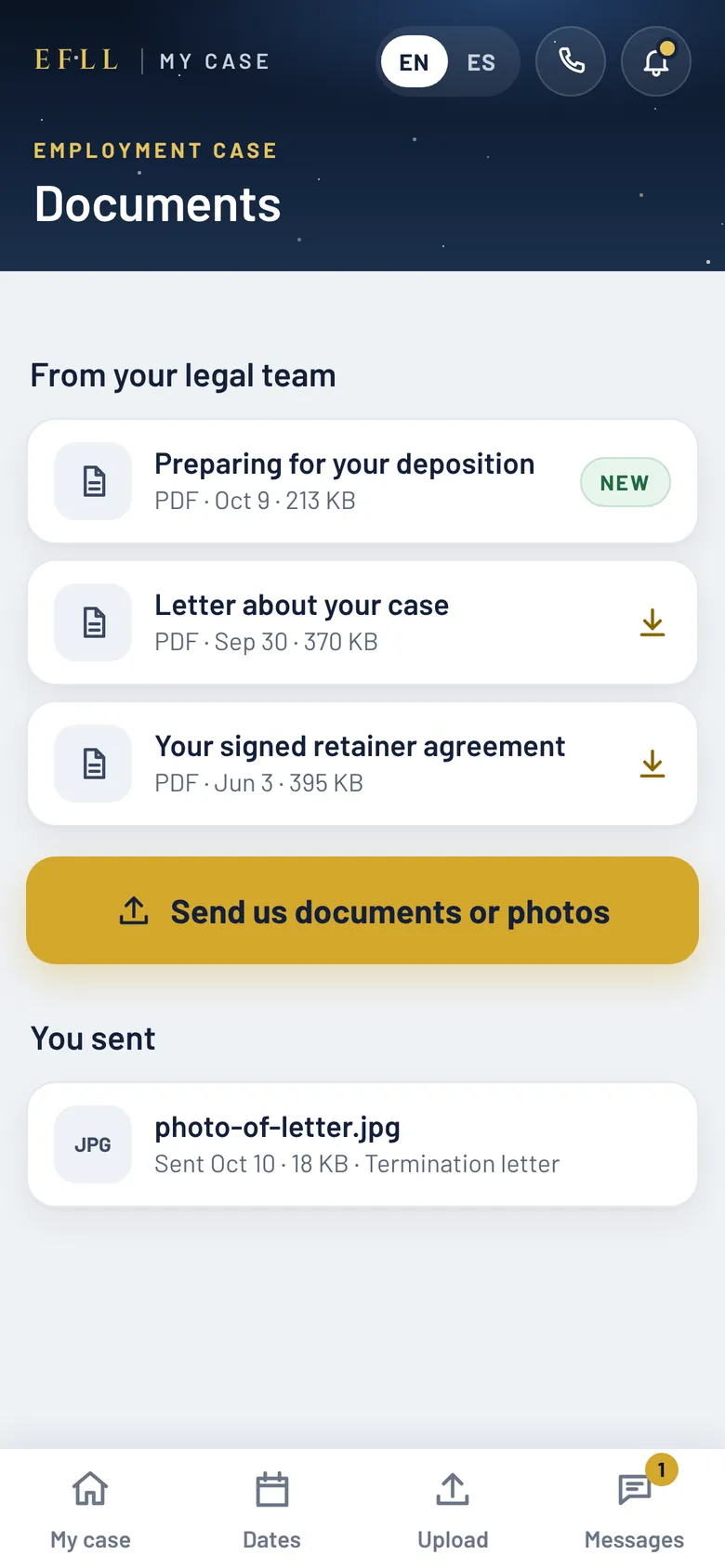
Reach this screen from the “Documents” tile or “All documents” on Home.

  • “From your legal team” lists only documents your team chose to share, each with its title, file type, date and size. New ones are marked “New.”
  • Tap to open. PDFs and JPG or PNG pictures open on your phone; other files download.
  • “You sent” keeps a list of every file you’ve sent your team.
The Documents screen: three documents from the legal team, one marked New, a gold “Send us documents or photos” button, and a You sent list.
Sample data — not an actual client or case.

Send us documents or photos

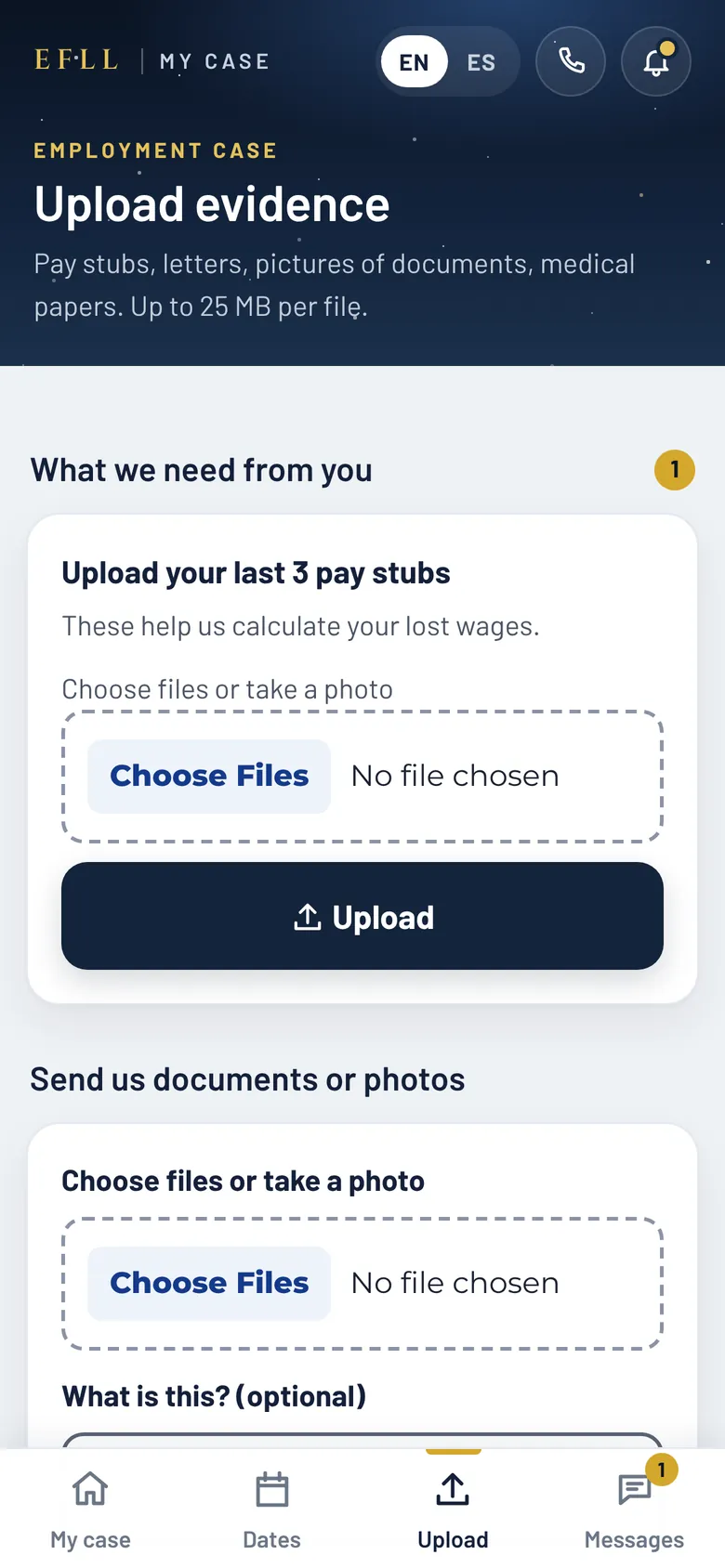
“Pay stubs, letters, pictures of documents, medical papers. Up to 25 MB per file.” Anything your team asked for comes first, and uploading against a request marks it done.

  • “Choose files or take a photo”: pick several files at once, or use your phone’s camera.
  • Add an optional note: “What is this?”
  • Accepted: PDF; pictures (JPG, PNG, HEIC, WEBP, GIF); Word, Excel, CSV, TXT, RTF; short video (MP4, MOV); audio (M4A, MP3); email files (EML, MSG).
  • Up to 25 MB per file, and up to 30 MB at a time. Your files are kept exactly as you sent them.
The Upload evidence screen: a request to upload the last 3 pay stubs with a file picker and Upload button, then the Send us documents or photos form.
Sample data — not an actual client or case.

Message your legal team

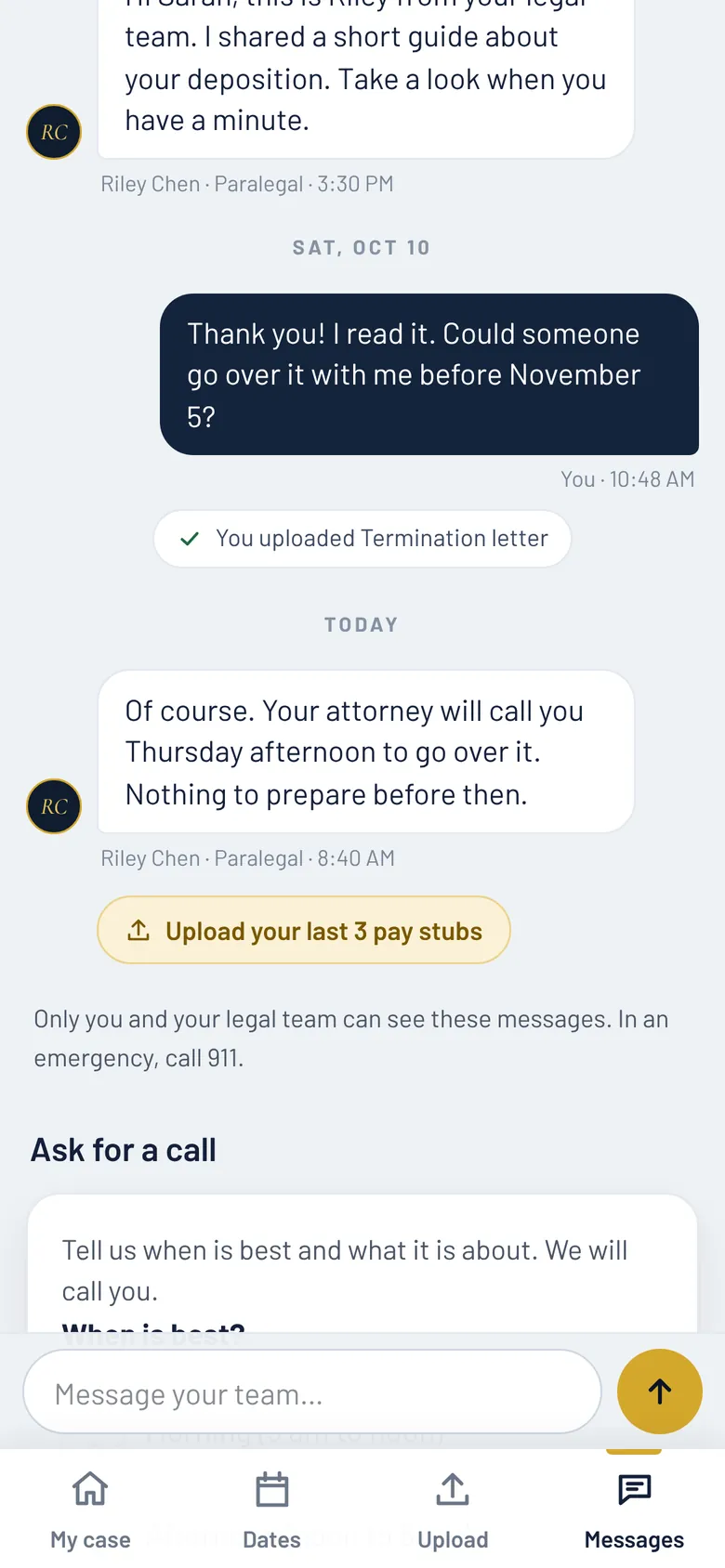
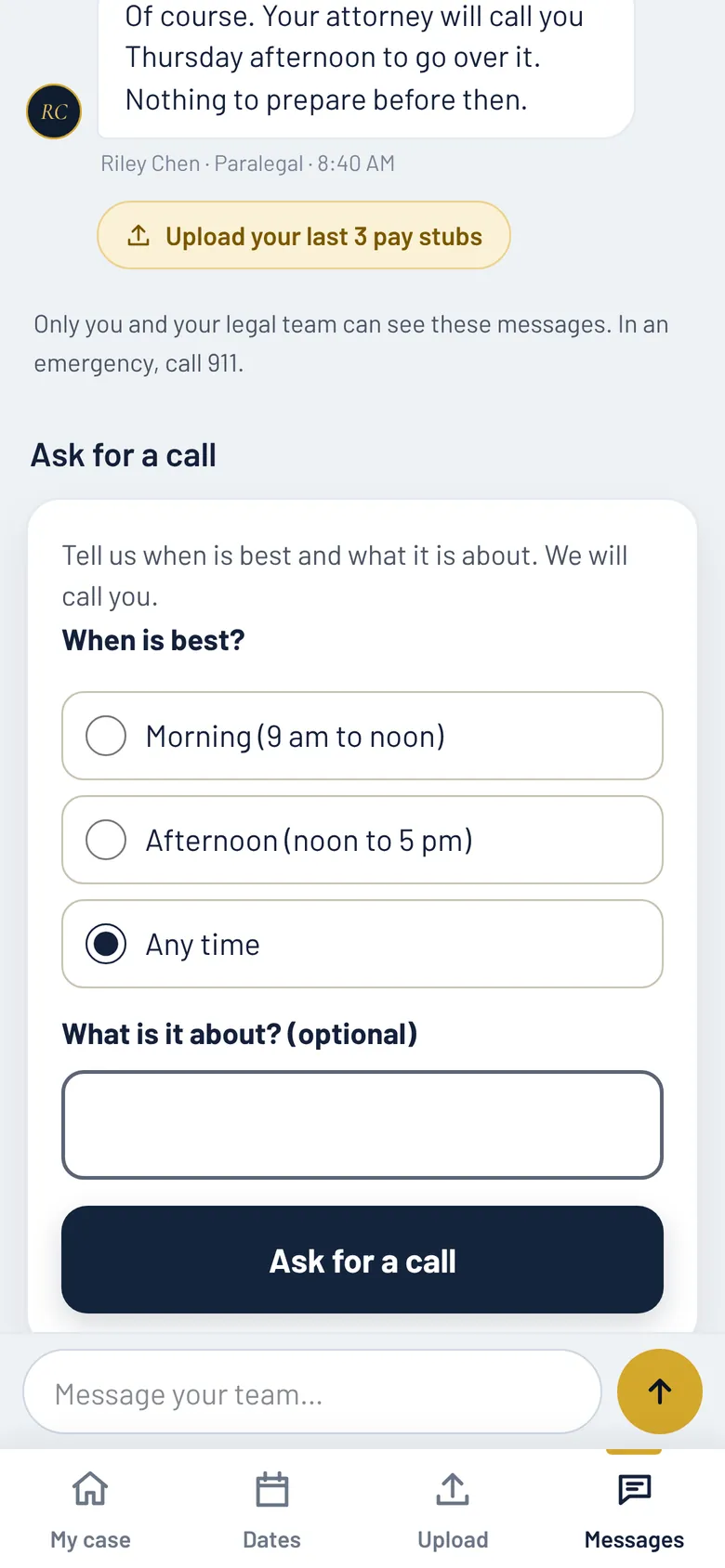
One conversation per case, grouped by day. Type in “Message your team…” and tap the gold arrow to send. Your team answers in the same conversation, and a number on the Messages tab shows unread replies.

  • Who reads it: on a workers’ comp case, your case manager; on an employment case, your litigation support team member. Anyone on that team can pick it up.
  • The conversation also notes what you uploaded and what your team shared.
  • “Only you and your legal team can see these messages. In an emergency, call 911.”
The Messages screen: a client's message and the team's reply grouped by day, a note that the client uploaded a file, and the Message your team box.
Sample data — not an actual client or case.

Ask for a call

Rather talk it through? “Tell us when is best and what it is about. We will call you.”

  • Morning (9 am to noon)
  • Afternoon (noon to 5 pm)
  • Any time

Add a topic if you like. You can have one open request at a time. Or call us at (310) 853-3461. Once you’re signed in, the phone button at the top of the portal dials it for you.

The Ask for a call form with Morning, Afternoon and Any time choices, an optional topic box, and an Ask for a call button.
Sample data — not an actual client or case.
Workers’ comp only

Log trips to the doctor

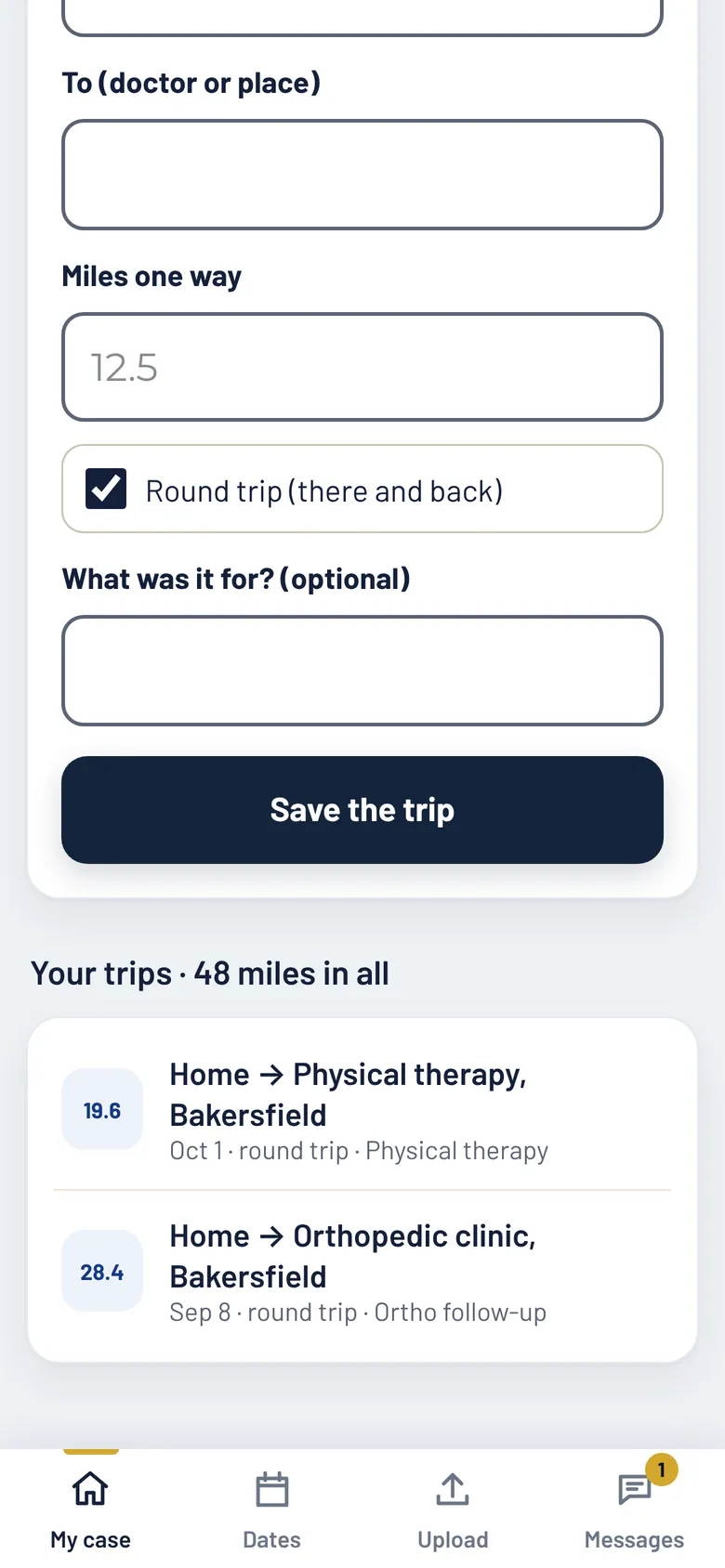
Driving to doctor visits? “You may be paid back for mileage. Write down each trip and we will claim it for you.” Tap “Log a trip” and fill in:

  • The date, where you started, and the doctor or place.
  • Miles one way, and whether it was a round trip.
  • What it was for (optional). Then tap “Save the trip.”

“Your trips” adds up the miles, and each trip is marked “claimed” once your team has claimed it. The log tracks miles only.

The mileage screen: the end of the Log a trip form with a Save the trip button, then Your trips, 48 miles in all, listing two round trips.
Sample data — not an actual client or case.

Every screen in English and Spanish

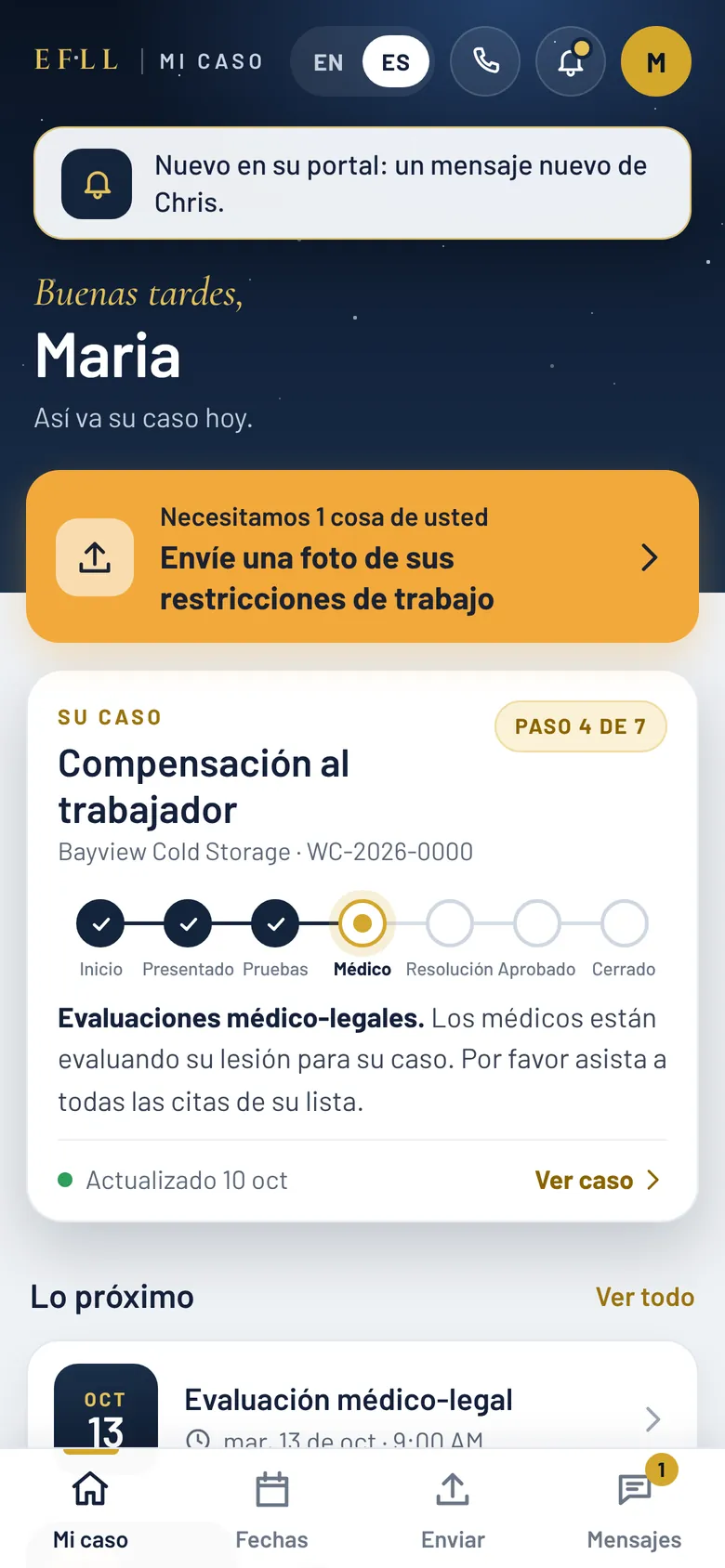
Tap EN / ES at the top of any screen. After you sign in, the portal opens in the language you chose with your team, and your sign-in text arrives in that language too.

In Spanish, the tabs read Mi caso · Fechas · Enviar · Mensajes, and the steps of your case, your dates and the what-to-bring tips are all in Spanish.

The Home screen in Spanish: “Buenas tardes, Maria,” a request banner, the case card reading Paso 4 de 7, and the tabs Mi caso, Fechas, Enviar and Mensajes.
Sample data — not an actual client or case.
On a computer, too

Built for your phone. It works on a wide screen as well.

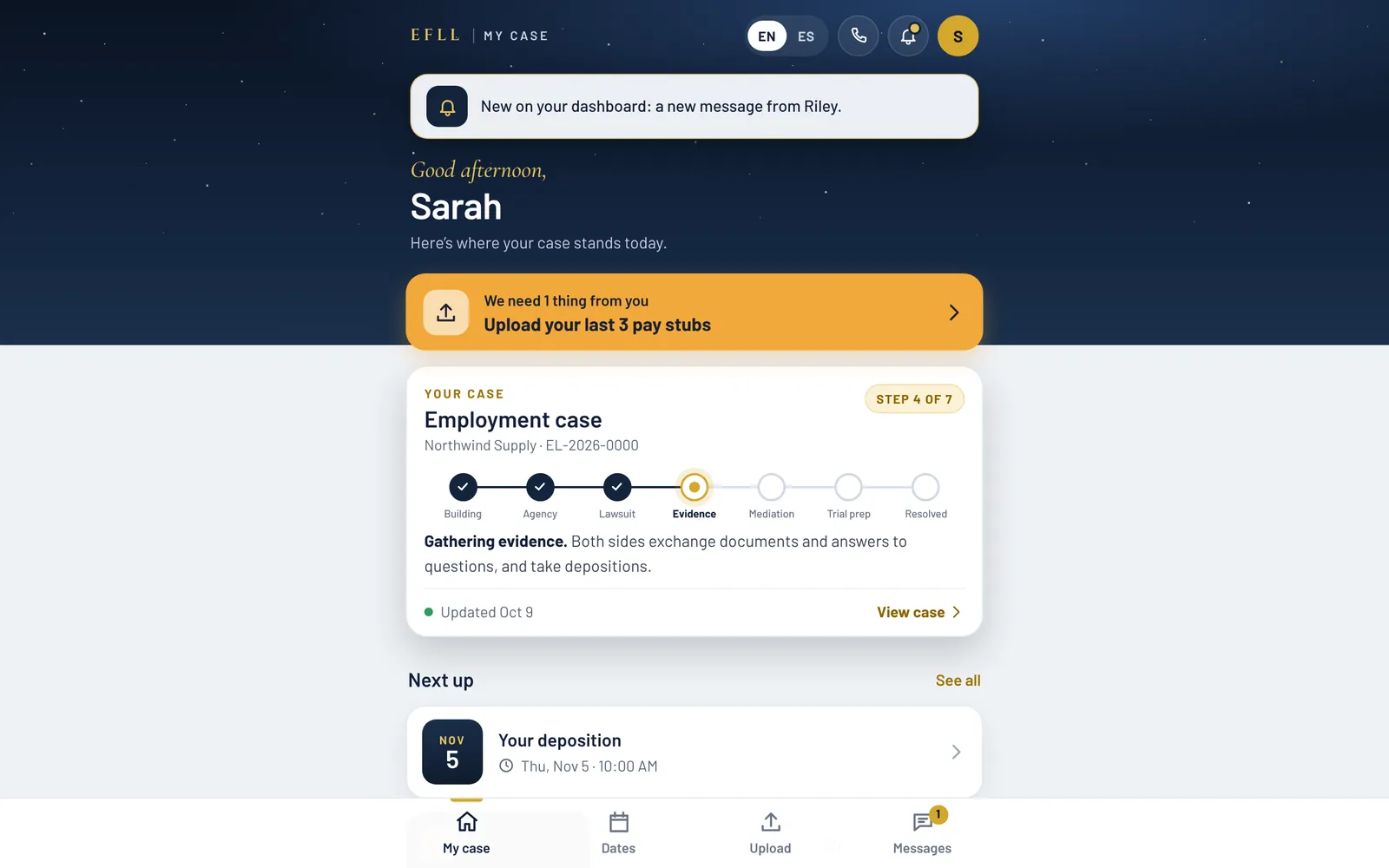
The portal is designed for a phone held upright. On a computer, it’s the same portal in a centered column, with the tabs at the bottom. Same sign-in, same code, and nothing to install.

The portal's Home screen on a computer: the same screens in a centered column on a wide screen, with the tab bar at the bottom.
Sample data — not an actual client or case.
Your case, step by step

Seven steps, in plain words The same tracker you see on your case card, for each practice.

Workers’ comp cases and employment cases move differently, so each has its own seven steps. Your case card shows which step you’re on, and “Every step of your case” marks the ones already passed.

Workers’ compensation

Workers’ comp cases

  1. Getting startedComenzando
  2. Claim filedReclamo presentado
  3. Gathering evidenceReuniendo pruebas
  4. Medical-legal evaluationsEvaluaciones médico-legales
  5. Working toward resolutionBuscando una resolución
  6. Approved by the judgeAprobado por el juez
  7. Case closedCaso cerrado
Employment

Employment cases

  1. Building your casePreparando su caso
  2. Government agency filingTrámite ante la agencia
  3. Lawsuit filedDemanda presentada
  4. Gathering evidenceReuniendo pruebas
  5. Mediation (or Motions)Mediación (o Mociones)
  6. Preparing for trialPreparando el juicio
  7. Resolved (or Case closed)Resuelto (o Caso cerrado)

“Motions” shares step 5, and “Case closed” shares step 7.

Each step comes with a short description of what is happening at that stage. It is written in plain language and is never a prediction or a promise.

Privacy & security

Private by design What that means for you, in plain language.

Only you and your legal team can see your case. Here is what that means in practice.

  • No password You sign in with a one-time 6-digit code texted to the number the firm has on file. It expires in 10 minutes and works once.
  • We never ask for your code by phone The firm will never ask you for your code by phone. Every code text says so.
  • Your team decides what you see Nothing shows up until your team shares it. If they stop sharing a document, it leaves your list.
  • Firm files stay in the firm Internal notes, the firm’s working files and dollar figures stay inside the firm. The portal never shows them.
  • Written by people, kept neutral Case updates come from your team and describe what is happening, never predictions or promises.
  • Sign-in reveals nothing The sign-in page looks the same for every number. It never reveals who is a client.
  • Signed out after 7 days You’re signed out automatically after 7 days, and you can sign out any time. Your team can turn off access or sign you out of every device at once.
  • Encrypted connection, unlisted pages The connection is encrypted (HTTPS), and search engines are told not to list portal pages.
  • No case details by text The portal only texts your sign-in code, an invitation when your access is opened, and an optional note from your team that something new is waiting. Reply STOP to opt out.
Questions

Client portal FAQ

Still stuck? Call (310) 853-3461 and we’ll walk you through it.

How do I get to my client portal?
Go to efll.law and tap “Client Sign In,” or open my.efll.law directly. Enter the mobile number you gave the firm and tap “Text me a code.” Then type the 6-digit code we text you.
Do I need a password or an app?
No. You sign in with a code sent by text, and the portal runs in your phone’s web browser. If you like, you can add it to your home screen so it opens like an app.
I didn’t get a code. What should I do?
  • Make sure you entered the number the firm has on file, then tap “Send a new code.”
  • Codes work for 10 minutes.
  • If you once replied STOP to our texts, we can’t text you a code.
  • Call (310) 853-3461 and we’ll help.
Who can use the portal?
Workers’ comp and employment clients whose legal team has opened portal access for their case. If you have more than one case with us, you’ll see all of them after one sign-in.
What can I see?
  • Where your case stands, step by step
  • Your upcoming appointments and hearings, and whether you need to attend
  • What to bring to each one
  • Who is on your team
  • The documents your team has shared with you
Can I send documents?
Yes. Use “Upload evidence” to send photos, PDFs, Word files and more, up to 25 MB per file. You can also take a picture with your phone’s camera.
Who reads my messages?
Your case team. On a workers’ comp case, your message goes to your case manager. On an employment case, it goes to your litigation support team member. Anyone on that team can pick it up, and they answer you in the portal. In an emergency, call 911.
Can I tell you if I can’t make an appointment?
Yes. On any date you need to attend, tap “I’ll be there,” “I need to reschedule,” or “I need a ride or an interpreter,” and add a note if you like. You can also add the date to your phone’s calendar or get directions.
Is it available in Spanish?
Yes. Tap EN / ES at the top of any screen. Your sign-in text comes in the language you chose with your team.
Is my information private?
  • Only you and your legal team can see your case.
  • You see only what your team shares with you.
  • Codes expire in 10 minutes and work once.
  • We will never ask you for your code by phone.
  • You stay signed in for up to 7 days, and you can sign out any time.
  • Your team can also turn off access or sign you out of every device.
Here to help

Ready when you are Whether you’re a client today or thinking about calling us.

Already a client

Open your portal

Sign in with the mobile number you gave the firm. If your team hasn’t opened access for your case yet, or a code doesn’t arrive, give us a call.

Not a client yet

Talk to us about your case

Employees First Labor Law has worked exclusively for workers since 2012, in employment and workers’ compensation cases. We offer free virtual consultations.

Prefer to write it down? Contact us online.

Free Case Consultation within 24 hours

Tell us what happened. A member of our team will reach out — free virtual consultations, exclusively for workers.

Where we practice

Seven offices across California

From the Central Valley to the coast, one firm and one standard of work.

  • PasadenaCorporate HeadquartersLos Angeles County
  • IrvineOrange County
  • Long BeachLos Angeles County
  • PomonaLos Angeles County
  • RiversideRiverside County
  • BakersfieldKern County
  • FresnoFresno County
Call (310) 853-3461Free case review
Employees First Labor Law
Privacy Overview

This website uses cookies so that we can provide you with the best user experience possible. Cookie information is stored in your browser and performs functions such as recognising you when you return to our website and helping our team to understand which sections of the website you find most interesting and useful.